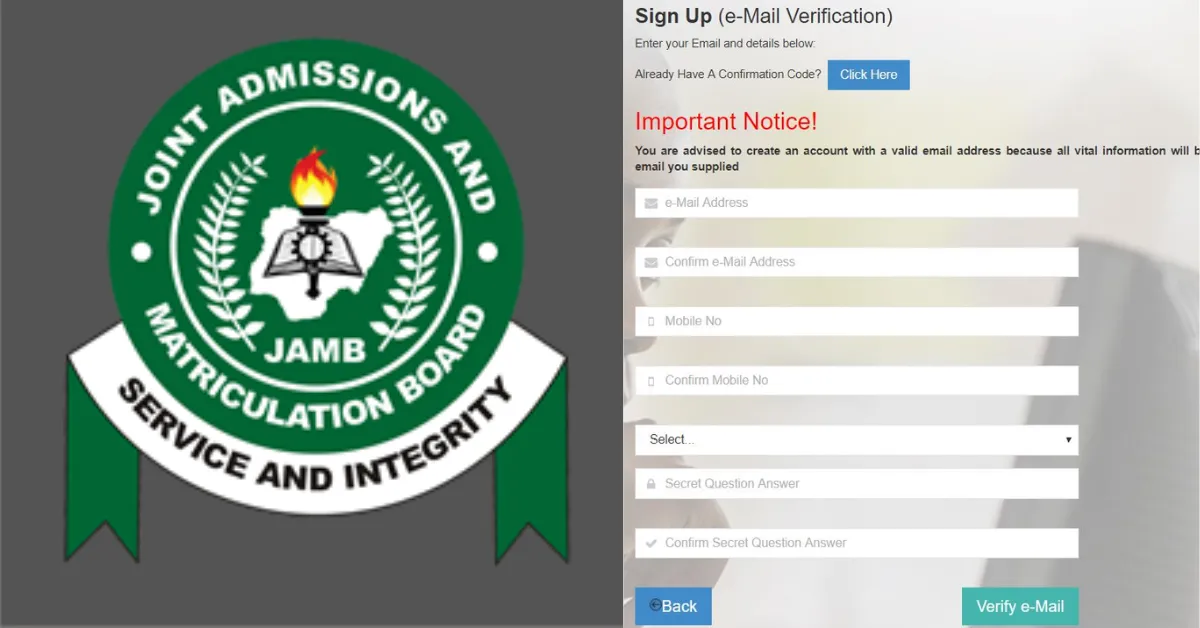
Your JAMB profile serves as your official identity throughout the admission process, granting you access to every stage that follows.
Fortunately, creating one is a straightforward process that requires only a valid email address and a phone number, and it can be completed entirely online via your computer or via SMS using your mobile phone.
Follow along as we provide clear, step by step instructions to help you establish your profile quickly and correctly.
How to Create Your JAMB Profile via Online
Creating your JAMB profile is simple and easy, but without this profile, you cannot register for the UTME exam or apply through Direct Entry. Here's how to do it correctly:
- Go to your browser and log on to the official JAMB portal at https://portal.jamb.gov.ng/
- Click on the "Create an Account".
- Fill in the correct information in the required field.
- Click on "Verify Email". A link will be sent to your email.
- Open the email and click the link that says “Click here to continue your Profile Creation”. If you are unable to click on the link, ensure the email is not in your SPAM/JUNK folder. If it is, move it into your inbox to access the link.
- Make sure you fill out the personal information form carefully, including your name, date of birth, gender, and nationality.
- Create a Password as this is what you will use to log in to your profile anytime.
- Click on "Register" to complete the process.
How to Create Your JAMB Profile via SMS
The SMS method is straightforward. You can create your JAMB profile by sending an SMS followed by your 11 digit NIN number to 55019 or 66019. To create a profile, send a text that includes:
Send NIN 12345678901 to 66019 to Create Jamb Profile.
Example: NIN 12345678901. You’ll receive a profile code, which is required for registration. Once you have successfully done that, check the email you provided during registration for verification and further instructions.
Note: There is an SMS charge of N50 for this service.
Unable To Verify NIN?
If you are getting an invalid format or a failed to verify NIN error message, here is what you need to check:
- NIN must be 11 characters.
Make sure your NIN is correctly linked to your number.
You can use any SIM card as long as it is registered with your name.
Make sure the NIN Name matches the name on your SIM Card.
Ensure you typed the Correct NIN Number.
What to Do If You Face Issues While Creating Your Profile
If you encounter problems like not receiving the confirmation email, check the following:
- Check your internet connection and try again.
- Look in your email spam or junk folder.
- Visit a nearby JAMB accredited registration centre for help.
- Contact JAMB customer care via the official website or helplines.
Important Things to Note When Creating Your JAMB Profile
- Ensure you always use your full name. Do not shorten or change it.
- Use an email and phone number that you check often, so you don’t miss important messages.
- Take your time to carefully enter your date of birth and other personal details. Ensure you check them carefully.
- Make use of a strong password that’s easy for you to remember but hard for others to guess.
- If you realise you made a mistake or get stuck, reach out to JAMB support or visit a nearby JAMB accredited centre for help.







No comments yet. Be the first to share your thoughts!